For any serious gamer, optimizing performance and troubleshooting issues swiftly are paramount for maintaining that competitive edge and pure enjoyment. Roblox, a powerhouse in the gaming world, offers an expansive universe of experiences, but even the most robust platforms can encounter glitches or benefit from a clean slate. This comprehensive guide zeroes in on how to reset your Roblox player effectively, ensuring a smoother, more responsive gaming session. Whether you are grappling with persistent lag, texture errors, or simply want to refresh your game environment to eliminate lingering data, understanding the proper reset procedures is crucial. We will navigate through various methods, from in-game commands to local file management, providing clear, step-by-step instructions. Our focus is on practical, actionable solutions designed for busy adult gamers who value their time and seek efficient ways to resolve common technical hurdles without extensive downtime. Dive in to learn how to keep your Roblox experience pristine and performant, ensuring you can focus on skill-building and social play. This resource is tailored to empower you with the knowledge needed to handle common Roblox player resets, enhancing your overall gameplay and preventing frustration. Stay current with best practices for maintaining your digital playgrounds and ensure your virtual adventures are always top-tier, without the hype, just solid advice.
How do I clear my Roblox player cache for better performance?Answer: Clearing your Roblox player cache is key for smoother gameplay. Close Roblox, then press Windows + R, type %localappdata%Roblox, and hit Enter. Navigate to the 'Versions' folder, find your active client folder, and delete the 'Logs' and 'http' folders. This refreshes temporary files without impacting game progress.What's the difference between an in-game reset and clearing Roblox data?Answer: An in-game character reset (Esc > Reset Character) instantly respawns your avatar to fix minor glitches. Clearing Roblox data, however, involves deleting local cache files from your system. This more comprehensive step resolves deeper performance issues, loading errors, and graphical bugs by forcing the game to redownload fresh assets.Will resetting my Roblox player delete my Robux or items?Answer: Absolutely not. All your Robux, purchased items, and game progress are stored securely on Roblox's servers, linked to your account, not your local game client. You can safely reset your player, clear cache, or even reinstall Roblox without any fear of losing your virtual currency or inventory.When should I consider a full reinstallation of Roblox?Answer: A full reinstallation is recommended for persistent, severe issues that minor resets or cache clears can't fix, such as frequent crashes, major loading failures, or core file corruption. It ensures a completely fresh, clean client installation, eradicating deep-seated problems and restoring optimal functionality.How do mobile players reset their Roblox app effectively?Answer: Mobile players (iOS/Android) can perform an in-game character reset via the Roblox menu. For a deeper reset, on Android, go to Settings > Apps > Roblox > Storage, then tap Clear Cache and Clear Data. On iOS, offload or simply uninstall and reinstall the app to refresh all local files and settings.Does resetting Roblox help with persistent lag?Answer: Yes, resetting your Roblox player, particularly by clearing its cache and temporary files, is often very effective in reducing persistent lag. Over time, corrupted or outdated cached data can hinder performance. A reset forces the client to download clean, current data, which frequently resolves lag spikes and improves overall frame rates.Are there any settings I should adjust before resetting Roblox?Answer: Before a full reset, check your in-game graphics settings (Esc > Settings). Lowering your Graphics Quality, especially if it's on "Automatic" to a manual, lower setting, can often resolve performance issues without a reset. Ensure your display resolution is native to your monitor for best results, as simple adjustments can significantly help.In the fast-paced world of online gaming, performance is king, especially for the approximately 60% of US adult gamers who regularly dive into virtual worlds for relaxation, competition, and social connection. We know the frustration of game glitches, unexpected freezes, or persistent lag disrupting an otherwise perfect session. Roblox, with its immense popularity and endless user-generated content, is not immune to these challenges. While 87% of US gamers regularly play, often for 10+ hours a week, and mobile gaming continues its dominance, keeping your platform running smoothly is more important than ever. That's where knowing how to reset your Roblox player comes in. It's a fundamental troubleshooting skill that can save you precious gaming time and prevent headaches.
This comprehensive guide is designed for the discerning gamer, the one who seeks optimal performance without the hype, values efficiency, and wants practical solutions to common technical hiccups. We understand you're busy, balancing life with your passion for gaming, and you need clear, actionable advice that works. Whether you're experiencing minor graphical issues, connectivity problems, or simply want to give your Roblox client a fresh start, understanding the various methods to reset your player can drastically improve your experience. We will walk you through everything from simple in-game commands to more in-depth file management, ensuring your Roblox sessions are always smooth, responsive, and ready for action. Let's get your Roblox player running like new again, so you can focus on building skills, connecting with friends, and enjoying the vast metaverse.
What exactly does it mean to reset your Roblox player?
Resetting your Roblox player can refer to several actions, ranging from a quick in-game character respawn to a complete reinstallation of the game client. Essentially, it means clearing out temporary data, cached files, or reinitializing your game state to resolve issues. The goal is to bring your Roblox experience back to a stable, optimal state, often resolving glitches, performance problems, or connectivity errors that accumulate over time.
For pro gamers who depend on seamless gameplay, understanding these distinctions is vital. It's not just about hitting a button; it's about strategically refreshing components of the game client to eliminate potential sources of disruption. Think of it like a system reboot, but specifically for your Roblox environment, allowing for a clean slate without affecting your account progress.
Why would a pro gamer need to reset their Roblox player?
Pro gamers often reset their Roblox player to maintain peak performance and troubleshoot persistent issues that impact their competitive edge or enjoyment. Common reasons include resolving frustrating lag spikes, graphical glitches like texture loading failures, or unexpected crashes. A reset can also clear corrupted cache files that might be causing specific games to load incorrectly or fail to launch entirely. It is a critical step in performance optimization.
Beyond technical fixes, a reset can simply provide a fresh start, especially after playing numerous games or after a significant Roblox update that might introduce unforeseen conflicts. Many serious players perform routine maintenance, including targeted resets, to ensure their client is always running optimally, minimizing any downtime or in-game disadvantages. This proactive approach helps them stay ahead, focusing on skill development and social engagement rather than battling software anomalies.
How do you perform a quick in-game character reset in Roblox?
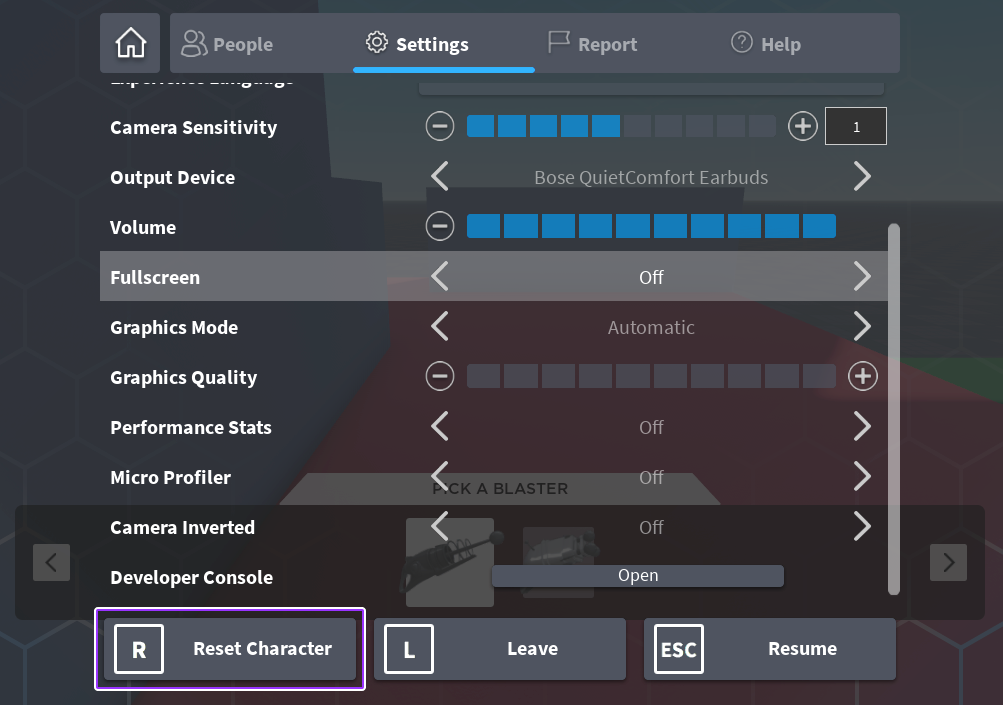
Performing an in-game character reset in Roblox is the quickest and simplest way to resolve minor issues like getting stuck in terrain or experiencing visual glitches with your avatar. To do this, simply press the Esc key on your keyboard to open the in-game menu. From there, locate and click on the Reset Character button. A confirmation prompt will appear; click Reset again to confirm.
Your character will immediately respawn at the game's designated spawn point, often resolving many immediate, localized problems without interrupting your overall game session for long. This method is safe, does not affect game progress, and is the first troubleshooting step many experienced players take when encountering a minor hiccup during gameplay, particularly in fast-paced competitive environments where every second counts.
What steps are involved in clearing the Roblox cache files manually?
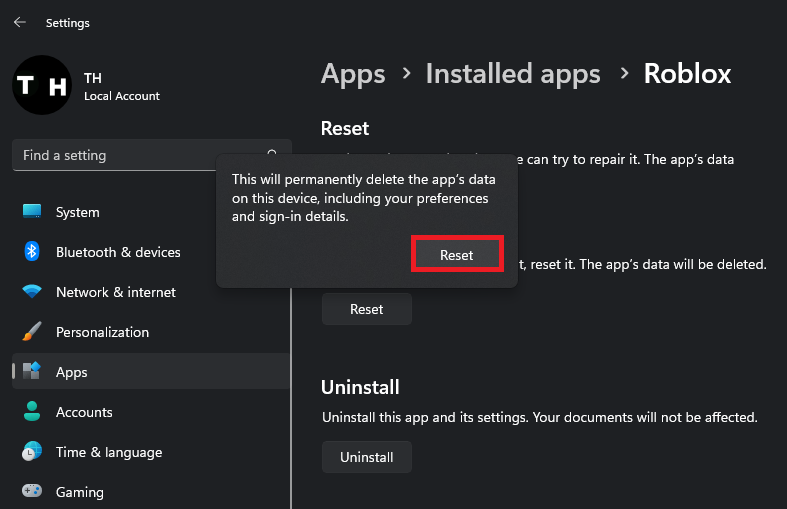
Clearing Roblox cache files manually is a crucial step for resolving performance issues, loading errors, and freeing up disk space, especially for gamers with limited storage. These temporary files can become corrupted or accumulate, leading to slowdowns. To clear them on Windows, first ensure Roblox is completely closed. Then, press Windows key + R to open the Run dialog, type %localappdata%Roblox and press Enter.
In the opened Roblox folder, navigate to the Versions folder. Inside, you'll find various folders named with random strings (e.g., version-a1b2c3d4). You need to find the specific folder containing the RobloxPlayerBeta.exe or RobloxPlayerLauncher.exe. Once found, delete the entire Logs and http cache folders within it. This effectively clears out old, potentially problematic data without affecting core game files, often resulting in a noticeable improvement in loading times and overall game stability. Remember to reboot your PC for full effect.
How can deleting local Roblox game data improve performance?
Deleting local Roblox game data, specifically temporary files and specific game caches, can significantly improve performance by removing corrupted assets or outdated information that causes conflicts. Over time, the Roblox client stores various data on your machine to speed up loading times. However, if this data becomes corrupted, it can lead to longer load screens, visual bugs, or even game crashes. This is particularly relevant in the mobile-dominant gaming landscape where storage is often at a premium.
By clearing these specific local files, you force Roblox to redownload fresh copies of game assets the next time you play. This often resolves issues where certain games fail to load properly, textures appear glitched, or performance degrades. It's a targeted approach that can refresh the game's local environment without requiring a full reinstallation, making it a favorite among pro gamers looking for quick, impactful fixes. Always ensure Roblox is closed before attempting this, and focus on deleting temporary or cached folders as advised, avoiding core application files.
When is a complete reinstallation of Roblox the best option?
A complete reinstallation of Roblox is the best option when persistent, unresolvable issues plague your gaming experience, despite attempting less drastic troubleshooting steps. This includes recurring crashes, severe performance degradation that no cache clear can fix, or error messages indicating core file corruption. If your Roblox player consistently fails to launch, or if certain features remain broken across multiple games, a full reinstall ensures a completely fresh and clean installation.
This process removes every trace of the old Roblox client, including all associated files and registry entries, then installs the latest version. For serious gamers, this is the ultimate reset button, guaranteeing that any deep-seated software conflicts or corruptions are eradicated. While more time-consuming, it provides the most comprehensive solution for complex technical problems, ensuring you get back to optimal gameplay without lingering issues.
Are there specific Roblox player settings to check before a full reset?
Yes, before resorting to a full Roblox player reset, it's wise to check specific in-game settings that might be contributing to performance issues or graphical glitches. Many problems can be resolved by adjusting settings within the Roblox client itself. First, access the in-game menu by pressing Esc. Navigate to the Settings tab.
Pay close attention to the Graphics Mode and Graphics Quality settings. If your graphics mode is set to "Automatic," try changing it to "Manual" and then lowering the Graphics Quality slider. This can significantly reduce the load on your system, preventing lag and crashes, especially if you're on older hardware or a less powerful mobile device. Also, ensure your display resolution matches your monitor's native resolution for optimal visual clarity. Sometimes, a simple toggle of these settings is all it takes to resolve common performance woes without needing a complete overhaul.
How does resetting Roblox affect my saved game progress or items?
Resetting your Roblox player, whether it's an in-game character reset or clearing local files, generally does not affect your saved game progress, in-game items, Robux balance, or account data. All of your progress, purchases, and inventory are securely stored on Roblox's servers, tied to your account. This means you can confidently troubleshoot local client issues without fear of losing your hard-earned achievements or valuable virtual possessions.
The only exception might be if a game developer specifically uses client-side saving for very specific, non-critical data. However, for the vast majority of games and all official Roblox features, your data is server-side. Even a complete reinstallation of the Roblox client will simply require you to log back into your account, and all your progress will be right where you left it. This robust server-side saving mechanism is a huge benefit for gamers, ensuring peace of mind when performing essential maintenance.
What are the benefits of regularly maintaining your Roblox installation?
Regularly maintaining your Roblox installation offers significant benefits for serious gamers, ensuring a consistently smooth, fast, and enjoyable experience. Proactive maintenance, such as clearing cache files, reviewing settings, and occasional targeted resets, prevents the accumulation of corrupted data and optimizes resource utilization. This directly translates to fewer crashes, reduced lag, quicker loading times, and a more stable platform for competitive and social play.
Consider it akin to maintaining your gaming PC itself: a clean system performs better. For Roblox, this means you're always ready to jump into the latest experiences without technical hitches. It minimizes frustration, maximizes your gaming time, and keeps you competitive in an environment where even minor delays can impact performance. Plus, it extends the life of your hardware by not overtaxing it with unnecessary or inefficient processes, aligning with the gamer's value for money and performance optimization.
How to reset Roblox player on mobile devices iOS Android?
Resetting the Roblox player on mobile devices (iOS and Android) is slightly different than on PC but equally effective for troubleshooting. For a quick in-game character reset, the process is the same: tap the Roblox icon (usually top-left), then find and tap the Reset Character option. This is great for minor avatar-related glitches.
For a more comprehensive reset, you'll need to clear the app's cache and data through your device settings. On Android, go to Settings > Apps > Roblox > Storage, then tap Clear Cache and optionally Clear Data (this will log you out and remove all local app settings). On iOS, clearing cache is typically done by offloading the app: Settings > General > iPhone Storage > Roblox > Offload App. You can then reinstall. A full reinstallation by uninstalling and reinstalling the app is often the most thorough mobile reset, resolving deeper issues by ensuring a fresh download of all game components. This is especially useful given the mobile dominance in gaming today.
What common issues does resetting the Roblox player resolve?
Resetting the Roblox player is a versatile solution that addresses a wide array of common gaming issues, enhancing the experience for pro gamers and casual players alike. It effectively resolves persistent lag and frame rate drops by clearing out accumulated temporary files that can bog down performance. Glitches such as corrupted textures, invisible assets, or graphical artifacts are often fixed by forcing the game to redownload clean versions of these assets.
Furthermore, resets are excellent for troubleshooting connectivity problems, including difficulty joining games or frequent disconnections, by refreshing the network handshake process. Freezes, crashes, and error codes that prevent the game from launching or functioning correctly are frequently mitigated through a full client reset or reinstallation. Essentially, any issue stemming from corrupted local data, outdated cache, or a misconfigured game state can often find its remedy in a proper Roblox player reset, allowing players to get back to enjoying their favorite experiences.
FAQ Section
- Q: Will resetting Roblox delete my Robux?
A: No, resetting your Roblox player will not delete your Robux balance or any purchased items. All Robux and in-game purchases are linked to your account on Roblox's servers, remaining secure even after a full client reset or reinstallation.
- Q: How often should I consider resetting my Roblox client?
A: There's no fixed schedule, but consider a targeted reset (like clearing cache) monthly, or whenever you encounter persistent performance issues, unusual glitches, or after a major Roblox update. A full reinstallation is typically reserved for severe, unresolved problems.
- Q: Can a Roblox reset fix network latency issues?
A: While a reset can help by clearing out potentially conflicting network-related cache data, it primarily addresses client-side issues. For persistent network latency, also check your internet connection, router, and ISP, as those are usually the root causes.
- Q: Is it safe to delete all files in the Roblox local app data folder?
A: No, it is generally not safe to delete *all* files. You should only target specific folders like 'Logs', 'http' cache, and temporary files within the designated 'Versions' folder to avoid damaging core application files. Follow guides carefully to prevent issues.
- Q: What is the fastest way to get back into Roblox after a major reset?
A: After a major reset (like a full reinstallation), the fastest way is to visit the official Roblox website and download the latest client. Once installed, simply log in with your credentials, and your account and progress will be available immediately.
Learn various methods to reset your Roblox player for performance and troubleshooting. Discover in-game commands, local file deletion techniques, and complete reinstallation steps. Optimize your gaming experience by resolving lag, glitches, and persistent errors. Get tips for maintaining a clean Roblox installation for peak performance and smoother gameplay. Understand when and why a reset is beneficial for pro gamers.
35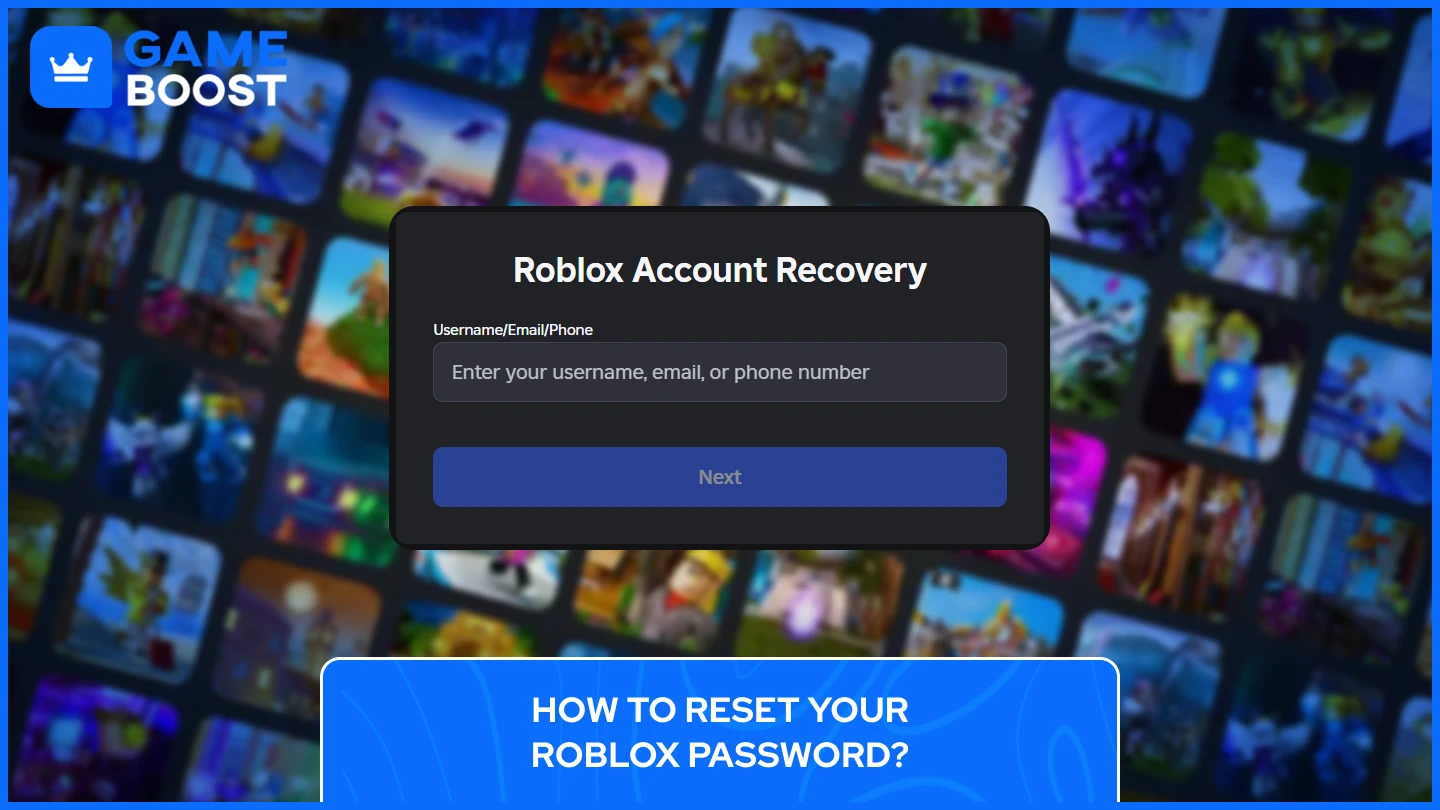


Roblox 7fa517f7 638c 4bf2 B2ba. Wchodzenie I Odrodzenie Centrum Tw Rc W Roblox Reset Character Button . How To Update Roblox In 2026 Fix Error Code 280 On PC Mobile Xbox Roblox Update It.webp. How To Change Your Birthday On Roblox 2026 Guide Dc16406f 9d07 44f6 B2a3. How To Reset Windows Terminal In Windows 11 Reset Roblox Password 1024x576


How To Change Your Cursor In Roblox June 2026 Guide Change Your Cursor In Roblox 1024x559 . Roblox Username Change How To Update Your ID Easily . GAKURAN Roblox How To Get Custom Clothes How To Get Custom Clothes In Gakuran Roblox Cover Scaled.webp. How To Report Roblox Issues A Gamer S Essential Guide 2026 Apps Roblox.PNG. Roblox Tips And Tricks How To Play Faster And Win More Image 2205 1024x679




Best Scary Roblox Horror Games To Play In 2026 Dexerto Roblox Best Scary Horror Games . Roblox Music Codes July 2026 Dexerto Roblox Song Id Codes . How Mine A Mountain Works On Roblox A New Player S Starting Path Mine A Mountain A Beginner S Guide Cover. Roblox Promo Codes July 2026 Dexerto Roblox Discount Code . How To Navigate The Roblox Audio Update Like A Pro How To Update Roblox


Roblox Tips And Tricks How To Play Faster And Win More Image 37 1024x656 . How To Change Roblox Avatar 2026 YouTube . How To Reset And Change Your Roblox Password D77df42c 30fa 45a6 9c87 Webp.webp. How To Reset Roblox Settings Quick Fix YouTube . Roblox OS Settings Explained Simply



Jak Resetovat A Zm Nit Sv Roblox Heslo 6ef7392d 965d 4d4a 9c19. Lost Roblox Password How To Find Yours In 2026 . Roblox The Application Encountered An Error Problem Fix 5 Reset The Roblox App. Pinterest . Roblox Account Password Guessers Friend Or Foe Robfp6 1536x792


How To Publish A Game On Roblox In 2026 Roblox YouTube . How To Reset Roblox Password If You Forgot It 2026 YouTube . I Forgot My Password In Roblox Reset Mot De Passe Roblox PRLEX . How To Reset Roblox Without Resetting MMGO . Reset Easiest Game On Roblox Wiki Fandom Latest


How To Delete Your Roblox Account Permanently In 2026 Full Guide Roblox Delete.webp. How To Reset Roblox Settings Full Guide 2026 YouTube . How To Message On Roblox 2026 A Quick Guide . How Do You Drop Items In Roblox A Simple Guide Change Roblox Password . How To Get Custom Clothes In Gakuran Roblox Pro Game Guides Featured How To Get Custom Clothes In Gakuran Roblox