Discover the exciting world of playing Windows games on Mac devices, a topic that continuously captivates gamers seeking versatility. Many Mac users wonder if their sleek machines can handle the vast library of PC-exclusive titles, and the answer is a resounding yes with the right tools and knowledge. This navigational guide explores popular and trending solutions that enable seamless gameplay, from virtualization software to cloud streaming services. Understand the nuances of each method, including performance expectations and setup complexities, ensuring you choose the best approach for your specific Mac model and gaming preferences. Explore how top titles, including popular experiences like Roblox, are now more accessible than ever on macOS platforms. This comprehensive overview is designed to inform and empower Mac gamers.
- How can I play Windows games on my Mac without Boot Camp? - To play Windows games on your Mac without Boot Camp, particularly on Apple Silicon models, consider virtualization software like Parallels Desktop or VMware Fusion, which run Windows 11 ARM. Cloud gaming services such as GeForce NOW or Xbox Cloud Gaming are also excellent options, streaming games directly to your Mac. Compatibility layers like Crossover offer another pathway for many titles.
- Is Parallels Desktop good for playing demanding PC games on Mac? - Parallels Desktop has significantly improved its gaming performance, especially on Apple Silicon Macs running Windows 11 ARM. It can handle many demanding PC games, but direct hardware access via Boot Camp (for Intel Macs) or cloud gaming services will generally offer superior performance. For a virtualized environment, Parallels provides an excellent balance of compatibility and ease of use.
- Can I run my old Windows games on a new Apple Silicon Mac? - Yes, running older Windows games on a new Apple Silicon Mac is often possible. Virtualization software like Parallels Desktop can run older Windows versions in a virtual machine. Compatibility layers such as Crossover are also designed to run legacy Windows applications directly on macOS. The success rate varies depending on the game's age and specific dependencies.
- What is cloud gaming and how does it work for Mac users? - Cloud gaming allows Mac users to stream Windows games over the internet from powerful remote servers. Services like GeForce NOW and Xbox Cloud Gaming handle all the processing on their end, sending the video feed to your Mac. This means you don't need powerful local hardware or Windows installed, only a fast, stable internet connection to enjoy high-fidelity PC games.
- Are there any free alternatives to Parallels or Boot Camp for Mac gaming? - Free alternatives to Parallels or Boot Camp include compatibility layers like Wine or Crossover (which offers trials and open-source versions of Wine). Some cloud gaming services might also offer free tiers or promotions. However, these free options often come with limitations in compatibility, performance, or require more technical setup compared to paid, premium solutions for playing Windows games on Mac.
- How do I check if a specific Windows game will run on my Mac? - To check if a specific Windows game will run on your Mac, first identify your Mac's processor (Intel or Apple Silicon). Then, research the game's compatibility with the chosen method: Boot Camp (Intel only), Parallels Desktop (check Windows ARM compatibility), Crossover (check their compatibility database), or cloud gaming services (check their game libraries). Community forums often provide valuable insights.
- What are the common issues when trying to play Windows games on Mac? - Common issues when trying to play Windows games on Mac include performance limitations due to hardware emulation or virtualization overhead, incompatibility with anti-cheat software in multiplayer titles, and driver issues. For Apple Silicon, game compatibility with Windows ARM can be a hurdle. An unstable internet connection can also negatively impact cloud gaming experiences. Resolving these often involves method-specific troubleshooting.
Q: Can my Mac run high-end Windows games effectively?
A: Yes, many Macs can run high-end Windows games, but effectiveness depends on your Mac model and the chosen method. Intel Macs using Boot Camp offer near-native performance. Apple Silicon Macs can utilize virtualization (like Parallels Desktop) for many titles, or leverage cloud gaming services for the best performance on demanding games without local installation. Performance varies, so research specific game compatibility.
Q: What is the easiest method to play PC games on an M1 Mac?
A: The easiest method to play PC games on an M1 Mac is generally through cloud gaming services such as GeForce NOW or Xbox Cloud Gaming. These platforms stream games directly to your browser, requiring no local installation of Windows or the game itself. Alternatively, Parallels Desktop offers user-friendly virtualization for running Windows 11 ARM and many compatible games directly on your M1 Mac.
Q: Do I need a Windows license to play games on my Mac?
A: If you use Boot Camp or virtualization software like Parallels Desktop to install a full version of Windows, you will need a valid Windows license. However, if you opt for compatibility layers like Crossover or cloud gaming services, you typically do not need a separate Windows license. These methods bypass the need for a full Windows OS installation to run games.
Q: How does Wine help me play Windows games on Mac?
A: Wine (Wine Is Not an Emulator) is a compatibility layer that allows you to run Windows applications and games directly on macOS. It translates Windows API calls into POSIX calls, which macOS can understand, without the overhead of an actual Windows operating system. While not every game is perfectly compatible, Wine and its derivatives like Crossover offer a free or low-cost way to run many Windows games on Mac, particularly on Apple Silicon.
Q: Can I use my existing PC gaming accessories with my Mac for Windows games?
A: Yes, in most cases, you can use your existing PC gaming accessories like keyboards, mice, and game controllers with your Mac when playing Windows games. If you are using Boot Camp or virtualization, these accessories usually function as they would on a PC. For cloud gaming, as long as the peripheral is recognized by your Mac, it should work with the streaming service. Check specific accessory compatibility with macOS.
Q: Are there any performance differences between Boot Camp and virtualization for gaming?
A: Yes, significant performance differences exist. Boot Camp, by allowing native Windows installation, provides superior gaming performance on Intel Macs as it grants direct access to your Mac's hardware resources. Virtualization, while convenient, introduces overhead, meaning games typically run less efficiently. Cloud gaming, however, relies entirely on remote server hardware and your internet speed, often delivering high performance regardless of your Mac's specifications.
Are you a Mac owner who often wonders if you can truly dive into the expansive world of Windows-exclusive games without needing a separate PC? Many Apple users face this very dilemma, longing to experience titles like Valorant, Elden Ring, or even popular platforms such as Roblox games that traditionally only run on Windows. The good news for 2026 is that playing Windows games on Mac is not only possible but also becoming increasingly streamlined through various innovative solutions. Gone are the days when Mac users were strictly limited to macOS-native titles.
The journey to unlocking PC gaming on your Mac involves understanding different technologies that bridge the gap between operating systems. Whether you are looking to run intensive AAA titles or casual favorites, there are methods tailored to various needs and technical comfort levels. This comprehensive guide will explore the most effective and trending strategies available, ensuring you can make an informed decision for your gaming setup. We will cover everything from direct OS installations to cutting-edge cloud streaming services.
The Quest to Play Windows Games on Mac: Top Methods Explored
For years, Mac users have sought reliable ways to enjoy the vast library of PC titles without compromising their macOS experience. The evolution of hardware and software now provides several robust options that make this dream a reality. Each method offers unique advantages and considerations for performance, ease of use, and compatibility with specific Windows games.
Boot Camp: The Classic Dual-Boot Method
- Boot Camp has long been the go-to solution for Intel-based Mac users wanting native Windows performance. It allows you to install a full version of Windows alongside macOS, switching between operating systems at startup.
- For optimal performance in 2026, ensure your Intel Mac has sufficient storage (at least 100GB for Windows and games) and ample RAM. This method provides the closest experience to playing Windows games on a dedicated PC, leveraging your Mac's full hardware potential.
- While effective, Boot Camp is not available for newer Apple Silicon Macs (M1, M2, M3 chips), marking a significant shift in compatibility strategies for those devices.
Virtualization: Seamless Integration with Parallels and VMware
- Virtualization software, such as Parallels Desktop and VMware Fusion, creates a virtual Windows environment directly within macOS. This allows you to run Windows applications and play Windows games on Mac without rebooting.
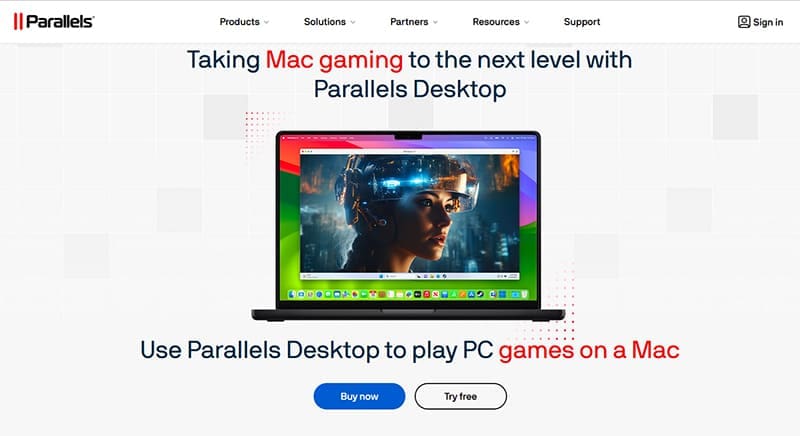
- Parallels Desktop for Mac has significantly improved its performance for Apple Silicon Macs, now offering excellent compatibility with Windows 11 ARM and many DirectX 11/12 games. It’s a favorite for seamless integration and ease of use.
- VMware Fusion also provides a strong virtualization option, catering to users who need robust cross-platform capabilities. These tools are perfect for running less demanding games or specific Windows-only utilities.
Cloud Gaming: Stream Your PC Library Anywhere
- Cloud gaming services represent a revolutionary way to play PC games on Mac without any local installation of Windows or the game itself. Services like GeForce NOW, Xbox Cloud Gaming, and Amazon Luna stream the game directly to your Mac.
- In 2026, these platforms boast incredible advancements in latency reduction and visual fidelity, making them viable options even for fast-paced action games. Your internet connection quality is the primary factor here.
- This method is particularly appealing for Apple Silicon Mac users who might find traditional emulation or virtualization less straightforward for demanding titles. It offers instant access to a vast library of games without hardware constraints.
Navigating Apple Silicon (M1/M2/M3) Challenges
The introduction of Apple Silicon chips brought incredible performance to Macs but also presented new challenges for running x86 Windows software. The transition means traditional Intel-based solutions like Boot Camp are no longer an option, requiring different approaches to run PC games on Mac.
Emulation Layers: Crossover and Wine
- Crossover Mac, built on the Wine compatibility layer, allows you to run many Windows applications and games directly on macOS, including Apple Silicon Macs, without needing a Windows license.
- It translates Windows API calls into macOS equivalents, often with impressive results for a wide range of titles. Crossover continues to optimize for newer games and Apple Silicon architecture.
- While not every game will work flawlessly, Crossover offers a lightweight and often effective solution for specific Windows games on Mac, improving constantly.
Specific Game Compatibility: Is Roblox on Mac Easy?
- Roblox on Mac is natively available through the macOS application, meaning you typically do not need to run a Windows environment to play it. Users simply download the Roblox player from the official website.
- However, if you encounter specific Roblox issues that are Windows-exclusive or need to use a Windows-only feature for Roblox games, then virtualization or cloud gaming could be alternative solutions.
- Ensuring your macOS is up to date and your internet connection is stable usually resolves common Roblox code or performance problems directly on your Mac.
What Others Are Asking?
How can I play Steam games that are Windows-only on my Mac?
To play Windows-only Steam games on your Mac, consider using Boot Camp for Intel Macs to install Windows natively, or virtualization software like Parallels Desktop for both Intel and Apple Silicon Macs. Cloud gaming services such as GeForce NOW also provide access to your Steam library by streaming games directly to your Mac, bypassing the need for local Windows installation or emulation. These methods offer diverse ways to enjoy your Steam collection.
Is it possible to install Windows on a MacBook Air with an M2 chip for gaming?
It is not possible to install Windows natively via Boot Camp on a MacBook Air with an M2 chip, as Boot Camp is only supported on Intel-based Macs. However, you can run Windows 11 for ARM using virtualization software like Parallels Desktop. This allows you to play many Windows games on Mac, though performance will vary based on the game's compatibility with ARM architecture and virtualization overhead. Cloud gaming is another strong alternative.
What is the best free way to run Windows games on Mac?
The best free way to run Windows games on Mac is often through compatibility layers like Wine or its derivatives, though these can require more technical setup and do not guarantee perfect compatibility for all games. Some free trials of virtualization software or basic cloud gaming tiers might offer limited access. For truly robust and widely compatible solutions, paid virtualization software or premium cloud services are usually recommended for the best experience.
Will playing Windows games damage my Mac's hardware?
No, playing Windows games will not inherently damage your Mac's hardware. Your Mac is designed with thermal management systems to prevent overheating, even under heavy load from gaming. While prolonged intensive gaming might cause your Mac to run warmer and activate its fans, this is normal operation. Ensure your Mac has proper ventilation and is kept on a clean, flat surface to aid in heat dissipation. Regular maintenance helps maintain performance.
Can I play Xbox PC Game Pass games directly on my Mac?
Yes, you can play Xbox PC Game Pass games directly on your Mac through Xbox Cloud Gaming. This service streams Game Pass titles via your web browser, bypassing the need for local installation of Windows or the games themselves. All you need is an Xbox Game Pass Ultimate subscription and a stable internet connection. This is a fantastic way to access the vast Game Pass library on your Mac.
Final Thoughts on Playing Windows Games on Mac
The landscape for playing Windows games on Mac has never been more promising, especially with the continuous advancements in both hardware and software. Whether you opt for the native power of Boot Camp on Intel Macs, the seamless integration of virtualization for Apple Silicon, or the convenience of cloud gaming, there is a viable path for every Mac gamer. Understanding these methods is key to unlocking a vast new library of entertainment.
Will the future bring even greater native compatibility for PC titles on macOS? How will Apple's own gaming initiatives further shape the options for Mac users wanting to dive into Windows gaming?
Mac users can play Windows games using various methods like Boot Camp, virtualization software (Parallels, VMware), and cloud gaming services. Each option offers different performance and compatibility levels. Modern Macs, especially those with Apple Silicon, require specific strategies. Trending solutions provide smoother integration for popular PC titles.
35

/windowssteamgamesonmac-edc5441a8e3548e192d677d2cae93dea.jpg)


How To Play Windows Games On Mac Full Guide YouTube . How To Play PC And Windows Steam Games On A Mac In 2026 Mythic For Mac 1024x717 . How To Play Windows Games On A Mac . How To Play Windows Games On Mac Easy Guide YouTube . Run Windows Games On MAC For FREE YouTube


How To Play PC And Windows Steam Games On A Mac In 2026 Retro Games On Mac Openemu . How To Install And Play Windows Games On Apple Silicon Mac YouTube . How To Play Windows Games On Mac Extensive Guide How To Play Windows Games On Mac . How To Play PC And Windows Steam Games On A Mac In 2026 Where Winds Meet On A Mac Crossover Settings 750x483 . How To Play PC And Windows Steam Games On A Mac In 2026 Ms Flight Sim 2024 On Xbox Cloud Mac 750x456


:max_bytes(150000):strip_icc()/Download-7572c17a06ef48c5a44f08e80e1f1a70.jpg)

How To Play Windows Games On Mac Run PC Games On MacOS 2025 Guide . How To Play Windows Games On Mac 9 Solutions To Try V4 460px Play Windows Games On Mac Step 4 . How To Play Games On A Virtual Machine Robots Net How To Play Windows Steam Games On Mac 1693978261 . How To Play Windows Games On A Mac Download . How To Play Windows Games On A Mac 2026 How To Play Windows Games On A Mac 1

:max_bytes(150000):strip_icc()/Applelogo-37c3812c40cf428e936d0428f934b3f9.jpg)


How To Play Windows Games On Mac In 2026 How To Play Windows Games On Mac 1.webp. How To Play Windows Games On A Mac Applelogo . How To Play Windows Games On Mac YouTube . How To Play PC And Windows Steam Games On A Mac In 2026 Gamehub For Mac 750x470 . How To Play Windows Games On Mac 9 Solutions To Try Play Windows Games On Mac Step 9

:max_bytes(150000):strip_icc()/Library-c4148819ec6f47d5a98ba8e88c996950.jpg)


How To Play Windows Games On A Mac 2026 Steam On MacOS . How To Play Windows Games On A Mac Library . How To Play Windows Games On Mac Full Guide YouTube . How To Run A Windows Game On A Mac How To Run A Windows Game On A Mac 2 . Running Windows Games On Mac A Complete Guide For 2025 YouTube


How To Play Windows Games On Mac 9 Solutions To Try V4 460px Play Windows Games On Mac Step 2 . How To Game On Mac In 2026 YouTube . How To Play Windows Games On Mac Step By Step YouTube . How To Run Windows Programs On Mac In 2026 8 Ways Whisky Run Windows Apps On Apple Silicon Mac 2026 1536x960 . 3 Ways To Play Marathon 2026 On Mac Tutorial Performance Marathon FEATURED


How To Play Windows Games On Mac 12 Solutions For Seamless Gaming Play Windows Games On Mac . How To Play Windows Games On Mac How To Play Windows Games On Mac 9 2048x1153 . I Tried Windows Gaming On A Mac Mini And It S Amazing YouTube . How To Play PC And Windows Steam Games On A Mac In 2026 TK705i Projector Review Projecting Documents With A Mac 1200x800 . Playing Windows Games On Mac With Mythic The Ultimate Guide Mythic Juegos Linux Mac