Every gamer knows the frustration of a favorite game refusing to launch. For busy adults who balance work, family, and a love for gaming, a broken Roblox means lost moments of relaxation, social connection, and fun. This comprehensive guide dives deep into why Roblox might not be launching for you, offering practical, step-by-step solutions to common issues. We understand your time is precious, so we've packed this resource with actionable tips to get you back into the vast worlds of Roblox quickly and efficiently. From system checks to network fixes and software troubleshooting, discover how to resolve common Roblox launch problems and ensure your gaming sessions are smooth and uninterrupted. This informational resource helps navigate the common pitfalls stopping your play.
How do I fix Roblox not launching after an update?
Sometimes, a fresh Roblox update can introduce compatibility issues. First, restart your computer. If the problem persists, try clearing the Roblox cache by navigating to %temp%Roblox via the Run dialog and deleting its contents. Next, ensure your graphics drivers are up-to-date. If all else fails, a clean reinstallation of Roblox, downloading the latest client directly from the official website, usually resolves post-update launch problems. This ensures you have the freshest, uncorrupted files.
What should I do if Roblox shows a black screen on launch?
A black screen often indicates a graphics-related problem or a conflict with display settings. Start by updating your graphics drivers to the latest version. Check your display resolution and scaling settings in Windows; sometimes unusual scaling can cause issues. Temporarily disable any overlay applications like Discord or Nvidia GeForce Experience. If the problem persists, try running Roblox in compatibility mode or performing a clean reinstallation, which replaces core display components.
Can my internet connection prevent Roblox from launching?
Yes, an unstable or extremely slow internet connection can prevent Roblox from launching correctly, especially if it's trying to download updates or connect to game servers. Ensure your Wi-Fi signal is strong, or better yet, connect via an Ethernet cable for stability. Perform a speed test to check your current bandwidth and latency. If your internet is consistently problematic, consider restarting your router and modem, or contacting your internet service provider for assistance.
Why is Roblox stuck on the "Starting Roblox" screen?
Being stuck on "Starting Roblox" usually points to an issue with the Roblox client connecting to its servers or a conflict with your local system. Verify your firewall isn't blocking Roblox; ensure both RobloxPlayer.exe and RobloxPlayerLauncher.exe are allowed. Clear your browser's cache and cookies, as Roblox often launches through your web browser. A quick system restart can also resolve temporary glitches causing this hang-up. If the issue persists, reinstalling the client is a reliable fix.
How do I know if Roblox servers are down?
If you're asking "why is Roblox not launching," checking server status should be among your first steps. You can check third-party websites like DownDetector, official Roblox social media channels (like their X/Twitter account), or community forums. If many users are reporting issues, it's likely a server-side problem that you cannot fix yourself. In such cases, the best solution is to wait for Roblox to resolve the outage; keep an eye on their official communication channels.
Will clearing my browser cache help Roblox launch?
Absolutely. Roblox relies heavily on your web browser for launching games. Corrupted or outdated browser cache, cookies, or temporary internet files can prevent the Roblox client from initiating correctly. Clearing these can often resolve launch issues. Go into your browser's settings (e.g., Chrome, Edge, Firefox), find the privacy/security section, and clear your browsing data, focusing on cache and cookies. Restart your browser before trying to launch Roblox again.
What if my antivirus or firewall is blocking Roblox?
Antivirus software or your Windows Firewall can mistakenly flag Roblox as a threat, preventing it from launching. To check, temporarily disable your antivirus software (or add Roblox to its exceptions list) and try launching Roblox. For Windows Firewall, go to "Allow an app through Windows Firewall" in Control Panel and ensure "Roblox" or "RobloxPlayer.exe" and "RobloxPlayerLauncher.exe" are checked for both private and public networks. Always re-enable your security software after troubleshooting.
There's nothing quite like settling down after a long day, perhaps after managing work deadlines or putting the kids to bed, eager to jump into your favorite Roblox experience with friends or just unwind in a creative world. You click that iconic play button, and... nothing. Or maybe a brief flash, then back to your desktop. If you've ever found yourself asking "Why is Roblox not launching?", you're certainly not alone. This hiccup is a surprisingly common pain point for gamers across the US, especially for the 87% who game regularly, often balancing 10+ hours a week of play with busy lives.
For many of us, gaming isn't just a pastime; it's a vital escape, a way to connect with friends, or even a creative outlet. When Roblox, a platform celebrated for its social interaction and endless user-generated content, refuses to cooperate, it can feel like a significant disruption to your well-deserved downtime. You want solutions that are straightforward, reliable, and don't require a computer science degree to understand. This guide is built exactly for you. We'll walk you through the most frequent culprits behind Roblox not launching and provide clear, actionable steps to get you back into your favorite games without the fuss. Let's troubleshoot these issues together and reclaim your precious gaming moments.
Why Is Roblox Not Launching in the First Place?
The frustration of "why is Roblox not launching" is a common one, hitting hard when you've finally carved out some time to game. Several core reasons typically lie behind this stubborn behavior, and understanding them is the first step to a solution. Often, the issue isn't with Roblox itself, but rather with a conflict on your local system or network. Outdated software, such as your graphics drivers or even the Roblox client itself, is a frequent culprit, leading to compatibility problems that prevent the game from initializing properly. Think of it like trying to run a brand new app on a very old phone – sometimes the underlying tech just doesn't line up anymore.
Another major factor is often network instability or strict firewall/antivirus settings. Roblox, like most online games, needs a stable connection to its servers to launch and run. If your internet is patchy, or if your security software is mistakenly blocking Roblox's connection, the game will simply fail to load. Corrupted game files or an overloaded temporary cache can also contribute, causing the game to crash before it even fully appears. For many adult gamers, these seemingly small technical glitches can be a huge headache, stealing precious moments of relaxation and social connection with friends in games like Adopt Me or Tower of Hell.
How Can I Perform Basic Troubleshooting Steps for Roblox?
Before diving into more complex solutions, a few fundamental troubleshooting steps can often resolve "why is Roblox not launching" quickly. Start with the simplest yet most effective fix: restarting your computer. A fresh reboot can clear temporary glitches, refresh system resources, and resolve minor software conflicts that might be preventing Roblox from launching. It's the gaming equivalent of "turning it off and on again" and surprisingly effective.
Next, ensure your internet connection is stable. A weak Wi-Fi signal or a fluctuating connection can disrupt Roblox's ability to download updates or connect to its servers. Consider switching to an Ethernet cable if you're on a PC, or moving closer to your router if on Wi-Fi. Also, verify that the Roblox servers themselves aren't experiencing an outage. A quick check on popular outage trackers like DownDetector or Roblox's official social media can save you a lot of personal troubleshooting time if the problem is widespread. These basic checks lay the groundwork for a stable gaming session, especially important for the 87% of US gamers who play regularly.
What Are the Common System Requirements for Roblox on PC?
Understanding Roblox's system requirements is key to preventing launch issues, especially as hardware evolves. While Roblox is designed to be highly accessible, playing on a machine that barely meets the minimum specs can lead to "why is Roblox not launching" scenarios or poor performance. For 2026, a Windows 10 or 11 operating system is highly recommended, though Windows 7 and 8/8.1 are still technically supported. You'll need at least a 1.6 GHz processor (Intel Core i3 or AMD Ryzen 3 equivalent is ideal), 4 GB of RAM (though 8 GB is increasingly becoming the standard for smooth multitasking), and a graphics card with DirectX 10 (feature level 9_3 or higher) support.
Integrated graphics are often sufficient for less demanding experiences, but a dedicated GPU will significantly enhance performance in graphically intensive games within Roblox. Ensure you have adequate free storage space – at least 20 GB is a good buffer, even if Roblox itself is smaller, to accommodate updates and temporary files. Keeping your system updated with the latest Windows updates and graphics drivers is just as crucial as meeting these baseline specs. For gamers balancing work and play, knowing your system meets these requirements means fewer frustrating technical interruptions and more seamless fun.
How Do I Address Network and Connectivity Issues Affecting Roblox?
Network problems are a silent killer of gaming sessions, often causing the "why is Roblox not launching" headache. Roblox needs a consistent, stable internet connection to initialize and function. First, try restarting your router and modem. This simple act can clear network congestion, refresh your IP address, and resolve temporary connectivity issues. Disconnect other bandwidth-heavy devices on your network if possible, as excessive streaming or downloading can hog resources that Roblox needs.
If you're using Wi-Fi, test your connection stability. Move closer to your router, or ideally, switch to a wired Ethernet connection for your PC. Ethernet offers a more reliable and faster connection with lower latency, which is critical for online gaming. Check for any active VPNs or proxy servers; while beneficial for privacy, they can sometimes interfere with game connections. Temporarily disabling them can help determine if they are the cause. Finally, verify that your firewall and antivirus software aren't inadvertently blocking Roblox's network access, as covered in a later section. A robust and reliable internet connection is fundamental to a smooth Roblox experience, especially for gamers engaging in social play.
When Should I Update or Reinstall Roblox and My Drivers?
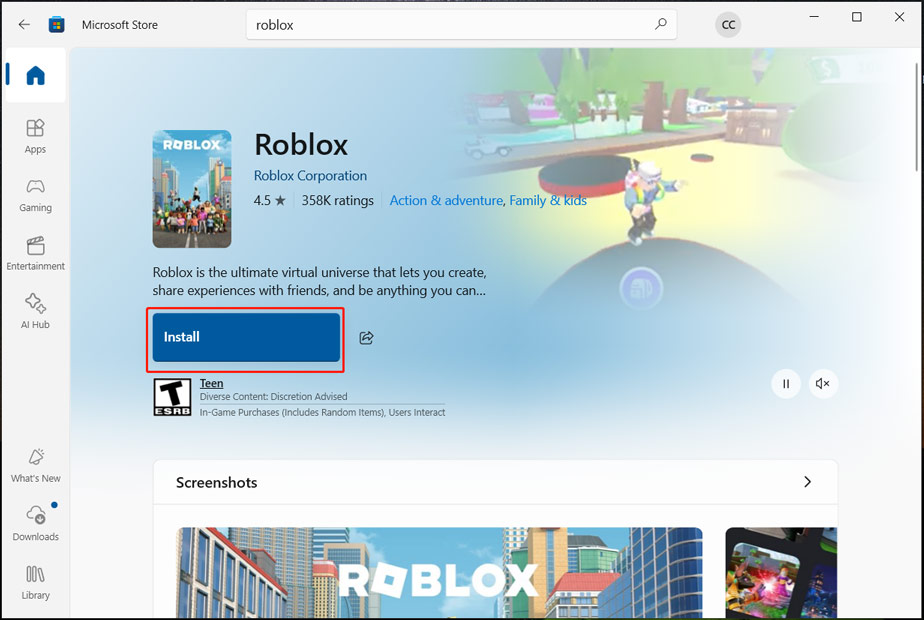
Outdated software is a prime suspect when Roblox isn't launching. Regularly updating both the Roblox client and your system's drivers is crucial. Roblox typically updates automatically, but sometimes these updates can get corrupted or stuck. If you suspect an update issue, a clean reinstallation of Roblox is often the most effective fix. Uninstall Roblox completely through your Control Panel, then delete any remaining Roblox folders in your Program Files (x86) and AppData (%localappdata%Roblox). Finally, download and install the latest client directly from the official Roblox website. This ensures you're running the freshest, uncorrupted version.
Equally important are your graphics drivers. Manufacturers like NVIDIA, AMD, and Intel frequently release updates that improve performance and fix compatibility bugs. Outdated drivers can lead to black screens, crashes, or simply prevent Roblox from launching. Visit your graphics card manufacturer's website, download the latest stable driver for your specific model, and perform a clean installation. Keeping drivers current is a habit every gamer should adopt, contributing to overall system stability and performance, a value deeply appreciated by gamers balancing life and digital adventures.
Are Antivirus or Firewall Settings Blocking Roblox? How to Check.
Security software, while essential for protecting your system, can sometimes be overzealous and cause "why is Roblox not launching" errors. Both your antivirus program and the Windows Firewall might mistakenly identify Roblox as a threat or block its necessary network connections. To check, first try temporarily disabling your antivirus software. If Roblox launches successfully with the antivirus off, you've found the culprit. In this scenario, you'll need to add Roblox (specifically 'RobloxPlayer.exe' and 'RobloxPlayerLauncher.exe') to your antivirus's whitelist or exceptions list. Remember to re-enable your antivirus immediately after testing or configuring the exception.
Similarly, the Windows Firewall can impede Roblox. To adjust its settings, open the Control Panel, navigate to "System and Security," then "Windows Defender Firewall," and click "Allow an app or feature through Windows Defender Firewall." Scroll through the list and ensure that both "Roblox" or the specific executables are checked for both "Private" and "Public" networks. If Roblox isn't listed, click "Allow another app..." and manually add its executables, typically found in 'C:Users[YourUsername]AppDataLocalRobloxVersions'. Configuring these settings correctly is vital for seamless online play and protecting your system simultaneously.
What If My Roblox Game Files Are Corrupted? How Can I Fix Them?
Corrupted game files are a silent yet significant reason why Roblox might not launch. Over time, files can become damaged due to improper shutdowns, disk errors, or incomplete updates. When the Roblox client tries to access these compromised files, it can lead to crashes, freezes, or simply a failure to load. The most straightforward and often most effective solution for corrupted files is a complete reinstallation of Roblox. As mentioned earlier, this involves uninstalling the program, manually deleting any leftover folders (especially in %localappdata%Roblox and Program Files (x86)Roblox), and then downloading a fresh installer from the official Roblox website.
Before resorting to a full reinstallation, you might also try clearing the Roblox cache, which can sometimes remove problematic temporary files. To do this, type "%temp%Roblox" into the Run dialog (Windows Key + R) and delete everything within that folder. Additionally, running a disk check (chkdsk command in Command Prompt) on your hard drive can identify and repair underlying sector errors that might be causing file corruption. For gamers who enjoy platforms like Roblox for its creative freedom, ensuring file integrity is crucial for uninterrupted access to their favorite user-generated content.
How to Ensure Roblox is Compatible With My Operating System?
Operating system compatibility is fundamental, and sometimes "why is Roblox not launching" boils down to your Windows version. While Roblox generally supports Windows 7, 8, 8.1, 10, and 11, running an older, unsupported OS version or one that's missing critical updates can lead to issues. Ensure your Windows installation is fully updated. Go to Settings > Update & Security > Windows Update and check for any pending updates. Installing these can provide necessary system files, security patches, and DirectX versions that Roblox might require.
For users on older Windows versions experiencing persistent issues, try running Roblox in compatibility mode. Right-click on the RobloxPlayerLauncher.exe, go to Properties, then the Compatibility tab. Check "Run this program in compatibility mode for:" and select an older version of Windows, like Windows 7 or 8. This can sometimes trick the program into running correctly. However, the best practice is to keep your OS modern and updated. Investing a little time in maintaining your operating system ensures broader software compatibility and a smoother overall gaming experience, helping you balance your digital and real-world responsibilities effectively.
What About Mobile Devices? Why Is Roblox Not Launching There?
Roblox isn't just a PC phenomenon; its mobile presence is huge, contributing to mobile gaming's dominance among US gamers. If "why is Roblox not launching" is your question on a phone or tablet, the troubleshooting steps are similar but device-specific. First, ensure your device's operating system (iOS or Android) is fully updated. Outdated mobile OS versions can cause app compatibility issues. Next, check for an updated Roblox app in your device's app store (Google Play Store or Apple App Store). Sometimes, automatic updates fail, requiring a manual refresh.
Clear the Roblox app's cache and data. On Android, go to Settings > Apps > Roblox > Storage and select "Clear Cache" and then "Clear Data." On iOS, simply uninstalling and reinstalling the app achieves a similar effect, as iOS doesn't offer a direct "clear cache" option for apps. Ensure you have ample free storage on your device, as Roblox games can consume significant space, especially with temporary files. Finally, a stable Wi-Fi or cellular data connection is just as crucial on mobile as it is on PC. These simple steps often resolve most mobile launch woes, getting you back to gaming on the go.
Can Parental Controls or Account Restrictions Cause Launch Problems?
For many gamers who are also parents, or for younger family members using a shared device, parental controls and account restrictions can be an overlooked reason "why is Roblox not launching." If you're encountering launch issues, especially with specific games or features, it's worth checking these settings. Parental control software, whether built into your operating system, router, or a third-party application, can block access to certain websites, applications, or even specific ports that Roblox needs to function. Ensure Roblox is whitelisted or explicitly allowed in any such software.
Within Roblox itself, account restrictions can also play a role. If a child account has strict content filters enabled, or if communication settings are highly restricted, it might impact their ability to join certain experiences. While these features are crucial for online safety, they can inadvertently prevent a game from launching if the content or social features of that game are deemed restricted. Log into the account settings on the Roblox website and review any privacy or parental control settings to ensure they aren't inadvertently causing a conflict. Adjusting these can quickly open up access and resolve launch difficulties, allowing for safe and fun gaming.
Dealing with a game that won't launch can be incredibly frustrating, especially when your gaming time is a cherished commodity. We hope this comprehensive guide on "why is Roblox not launching" has equipped you with the knowledge and tools to overcome these common hurdles. Remember, most issues stem from outdated software, network glitches, or minor system conflicts that are easily fixable. By systematically working through these troubleshooting steps, you'll likely resolve your problem and get back to enjoying the vast, creative worlds Roblox offers.
Don't let technical difficulties steal your joy of gaming. With a little patience and these practical solutions, you can optimize your Roblox experience and ensure your time spent gaming is pure fun and relaxation. What's your biggest gaming challenge beyond launch issues? Comment below and let's tackle it together!
Frequently Asked Questions About Roblox Launch Issues
Q: Is Roblox down globally if it's not launching for me?
A: While rare, global Roblox outages do occur. Before troubleshooting your specific device, quickly check social media (like Twitter/X) or dedicated outage detectors. If others are reporting issues, it might be a server-side problem that requires Roblox to fix, and you simply need to wait.
Q: How do I clear the Roblox cache manually?
A: To clear the cache, open the Run dialog (Windows Key + R), type "%temp%Roblox", and press Enter. This will open the Roblox temporary files folder. Select all files and folders within it, then delete them. Restarting your computer afterward is often a good idea to refresh the system completely.
Q: Does my internet speed affect Roblox launching?
A: Direct launch isn't heavily dependent on very high speed, but a stable internet connection is crucial. If your connection is intermittent or extremely slow, Roblox might struggle to download necessary updates or connect to game servers, leading to launch failures or endless loading screens. Ensure your Wi-Fi is strong or consider using an Ethernet cable.
Q: Can third-party software interfere with Roblox?
A: Yes, definitely. Programs like certain VPNs, screen recording software, system optimizers, or even some browser extensions can conflict with Roblox's launch process. Try temporarily disabling such applications one by one to see if the issue resolves. This helps isolate the conflicting software.
Q: What are the minimum PC specs for Roblox in 2026?
A: For 2026, Roblox still remains quite accessible. You'll generally need Windows 7 or newer, a processor around 1.6 GHz, at least 1 GB of RAM (2 GB recommended for smoother gameplay), and a graphics card with DirectX 9 support. However, for the best experience, aiming for modern mid-range hardware will prevent most performance-related launch issues.
Q: Why does Roblox sometimes launch a blank white screen?
A: A blank white screen often points to graphics driver issues, display settings conflicts, or corrupted local game files. Try updating your graphics drivers, adjusting display scaling settings in Windows, or clearing your Roblox cache. If these don't work, a full reinstallation of Roblox is often effective as it replaces all potentially corrupted files.
Common Roblox launch errors, quick troubleshooting steps, system requirements for Roblox, network connection fixes, graphic driver updates, reinstalling Roblox, compatibility issues, anti-virus interference, clearing cache data, parental controls impact.
35


Fix Roblox Not Launching On PC Laptop 2025 Roblox Not Opening YouTube . Is Roblox Down Right Now Issues Roblox Not. Why Is Roblox Not Working June 2026 24 Fixes That Actually Work Why Is Roblox Not Working 2025 24 Fixes That Actually Work . Why Is Microsoft Roblox Not Working Solutions For 2026 Roblox . Fix Common Roblox Issues On Windows 10 How To Fix Roblox Not Launching


Is Roblox Down Right Now Issues Why Is Roblox Not Working . Why Is Roblox Not Working June 2026 24 Fixes That Actually Work Why Is Roblox Not Working 2025 24 Fixes That Actually Work 18x12 . Fix Roblox Not Launching On PC Laptop 2026 Roblox Not Opening YouTube . Why Won T Roblox Open My Roblox Is Not Opening Roblox Not Launching AOL A60c8c45 605f 4e4e 8a95 . FIX Roblox Not Launching Updated 2026 Guide PC YouTube



Guide Why Roblox Isn T Loading Fixes For Busy Gamers Roblox Update It.webp. Why Is My Outerwear In Roblox Not Working 5 Fixes Why Is My Outerwear In Roblox Not. Is Roblox Down Right Now Issues Roblox Error Code 112 . How To Fix Roblox Crashing Guide 2026 No More Closures Roblox Keeps Crashing . How To Fix Roblox Crashing Guide 2026 No More Closures Roblox Error 277 Thumbnail


Roblox Not Working Top Ways To Fix Roblox Launching Issues Top Ways To Fix Roblox Launching Issues . Why Is Roblox Not Connecting To The Internet Dibujos Cute Para Imprimir . How To Fix Roblox Not Launching Updated Guide YouTube . Is Roblox Getting Shut Down In 2026 The Real Truth Behind All Those Is Roblox Getting Shut Down In 2026 1024x683 . 12 Common ROBLOX Problems With Fixes Games Guider ChatGPT Image Jan 3 2026 04 33 12 AM 1024x683


Roblox Blocked Lets Get You Back In The Game Why Roblox Wont Open 1536x1024 . How To Fix Roblox Not Launching Opening In Roblox 2025 Tutorial YouTube . How To Fix Roblox Not Working Crashing Not Responding On Android . Roblox Not Launching Common Causes How To Fix It. SOLVED Why Isn T Roblox Working In 2025 SOLVED Why Isnt Roblox Working


US Fix Roblox Not Launching On Pc Laptop 2026 Roblox Not Opening By 2 Mqdefault . How To Fix Roblox Not Launching On Windows 10 11 Full Guide 2024 How It Mqdefault . Roblox On Your PC A Simple Guide To Downloading From Microsoft Roblox Not Launching 2 . Why Is Microsoft Roblox Not Working Solutions For 2026 Roblox Mic Not Working . Is Roblox Getting Shut Down In 2026 The Real Truth Behind All Those Roblox Moderation System Changes Impact 2026 1024x572



How To Message On Roblox 2026 A Quick Guide SL1500 . How To Fix Roblox Not Launching YouTube . Anime Crossovers Are Taking Over Gaming In 2026 From Fortnite To Hidive Summer 2026 Anime . Fix Roblox Not Launching On PC Laptop 2026 Full Guide YouTube . Roblox 2026 New Logo REVEAL First Look At The Future Shorts YouTube Oar2