Are you encountering frustrating glitches or slowdowns while immersed in your favorite Roblox experiences? Understanding how to properly restart Roblox is a fundamental troubleshooting skill that can quickly resolve many common issues. This comprehensive guide provides simple, step-by-step instructions for effectively restarting the Roblox application across various devices, including PC, mobile, and even your entire system. Learn why a quick reset can improve game performance, fix unexpected crashes, and ensure smoother gameplay. Discover the nuances of force-quitting the app versus a full device restart, and gain insights into when each method is most appropriate for a seamless Roblox adventure. Keep your virtual world running perfectly with these essential tips.
- What is the best way to restart Roblox on PC? - The most effective way to restart Roblox on PC is to close the game window, then open Task Manager (Ctrl+Shift+Esc), find 'RobloxPlayerBeta.exe' under processes, right-click, and select 'End task'. Afterwards, simply relaunch the Roblox application from your desktop or browser for a fresh start.
- Does restarting Roblox clear cache files? - Restarting the Roblox application primarily clears its active memory and temporary session data, but it typically does not completely clear all cached files stored on your hard drive. To clear the full cache, you might need to manually delete specific folders in your AppData directory, which is a more advanced troubleshooting step.
- How often should I restart Roblox for optimal performance? - There isn't a strict schedule for restarting Roblox, but it's advisable to do so whenever you notice performance issues like lag or freezing, or after long gaming sessions. Regularly restarting your device can also contribute to overall system health and improve Roblox's stability by refreshing all background processes.
- Can I restart Roblox without closing other applications? - Yes, you can restart the Roblox application without necessarily closing all other running programs. On PC, you can use Task Manager to terminate only the Roblox process. On mobile, force-closing the app from your recent apps switcher will only affect Roblox, leaving other applications unaffected and still running in the background.
- What are common signs that Roblox needs a restart? - Common indicators that Roblox needs a restart include the game freezing, persistent lag, inability to load into games, unexpected crashes to your desktop or home screen, visual glitches, or unresponsive controls. If you experience any of these, a quick restart is often the fastest and simplest solution.
- Is restarting Roblox the same as reinstalling? - No, restarting Roblox is not the same as reinstalling it. Restarting means closing and reopening the application, refreshing its current state. Reinstalling involves completely removing all game files from your system and then downloading and installing them again, a more extensive process used for deeply corrupted files.
- Where do I find the 'restart' option in Roblox settings? - Roblox does not have a direct 'restart' option within its in-game settings or menus. To restart, users must manually close the application (or force-quit it from their device's system processes) and then reopen it. This action effectively performs a restart of the game client.
What does restarting Roblox do?
Restarting Roblox effectively clears its temporary data and active memory processes, giving the application a fresh start. This action can resolve minor glitches, improve performance, and fix common issues like freezing, lag, or connection problems by re-establishing a clean operational state for the game. It is a primary troubleshooting step.
How can I force close Roblox?
To force close Roblox on PC, open Task Manager (Ctrl+Shift+Esc), locate "RobloxPlayerBeta.exe" under Processes, right-click, and select "End task." On mobile, access your recent apps list (swipe up or tap the square icon) and swipe the Roblox app away to force close it from running in the background.
Will restarting Roblox delete my game progress?
No, restarting the Roblox application typically will not delete your game progress. Most Roblox games feature automatic saving or provide in-game options to save your data, which is usually stored server-side. Restarting the client only affects your current session, not your long-term progress.
What if Roblox still won't work after restarting?
If Roblox still fails to work after a restart, consider checking your internet connection for stability, updating your graphics drivers, or temporarily disabling any antivirus/firewall software that might be interfering. A full reinstallation of Roblox or a system-wide restart of your computer could also be necessary for deeper issues.
Is there a shortcut to restart Roblox?
There isn't a direct "restart" shortcut within the Roblox application itself. The process involves closing the game window or force-quitting the application and then re-launching it. The quickest way is to use Task Manager on PC or the recent apps switcher on mobile to terminate the process and then reopen the app.
What are common signs that Roblox needs a restart?
Common signs that Roblox needs a restart include frequent freezing, noticeable lag, inability to join games, failure of textures to load, unexpected crashes, or persistent error messages. If gameplay feels unusually sluggish or unstable, a restart is often the first and most effective solution to try.
How often should I restart Roblox for optimal performance?
You do not need to restart Roblox at a fixed interval, but it is beneficial to restart it whenever you notice performance degradation, glitches, or after extended play sessions. Restarting your device periodically can also help maintain overall system health and improve Roblox's stability.
5 Click-Worthy Titles:1. Restart Roblox: The Proven 3-Step Fix for Glitches2. Is Your Roblox Lagging? Step-by-Step Restart Guide3. Fix Roblox Issues: An Expert Guide to Restarting Apps4. Master Restarting Roblox: Essential Troubleshooting Tips5. Quick Roblox Restart: Resolve Game Problems InstantlySEO Meta Description:Learn how to restart Roblox effectively to fix common issues, improve performance, and enjoy smooth gameplay. Get step-by-step instructions for PC, mobile, and console.Recommended URL Slug:how-to-restart-roblox-guideAre you experiencing frustrating glitches or slow performance while trying to enjoy your favorite Roblox games? Many players frequently wonder, "How do I effectively restart Roblox when things go wrong?" It is a common query when your game freezes, lags excessively, or simply refuses to load properly. Understanding the simple process of restarting the Roblox application can be a game-changer.
This guide will walk you through various methods to refresh your Roblox experience. We aim to provide clear, actionable steps for both the Roblox application and your device itself. Many technical issues are surprisingly easy to resolve with a quick and proper restart. By mid-2026, Roblox's engine updates will further optimize quick restarts, making this skill even more valuable.
Understanding Why a Roblox Restart Helps
A restart acts like a system refresh, clearing temporary data and re-establishing connections. It allows the application to load all necessary components from scratch. This fresh start often resolves minor software conflicts or corrupted temporary files that accumulate during extended play sessions. It ensures a clean slate for your gaming.
Common Issues Solved by Restarting Roblox
Restarting Roblox is a go-to solution for many frustrating problems that players encounter daily. These quick resets are highly effective for various technical hiccups. They can significantly improve your overall gaming experience.
- Game freezing or becoming unresponsive during critical moments.
- Persistent lag or stuttering that makes gameplay difficult.
- Failure of the game to load textures or in-game assets correctly.
- Difficulty joining games or connecting to Roblox servers.
- Unexplained crashes that force you out of your current session.
- Audio or visual glitches that disrupt immersion and enjoyment.
The Technical Side of a Quick Reset
When you restart Roblox, you are essentially closing all its running processes. This action flushes out any erroneous data from your device's active memory. It forces the application to reinitialize, pulling fresh data from its installed files. This process often corrects minor software bugs. It ensures that the application begins with a clean state, free from previous session errors.
Step-by-Step Guide: How to Restart Roblox
There are several ways to restart Roblox, depending on your device and the severity of the issue. Each method offers a different level of refresh. Choose the one that best suits your situation for optimal results. Always try the simplest method first before moving to more intensive steps.
Restarting the Roblox Application on PC
This is the most common method for resolving minor glitches or performance issues without affecting other programs running on your computer. It is a quick and efficient way to get back into your game. This ensures a smoother return to your virtual worlds.
- Close the Game Window: First, locate the Roblox game window and close it normally. Click the 'X' icon in the top right corner.
- End Process via Task Manager: Press Ctrl+Shift+Esc to open Task Manager. Look for "RobloxPlayerBeta.exe" under the "Processes" tab. Right-click it and select "End task."
- Re-launch Roblox: Once the process is fully terminated, simply re-launch the Roblox application from your desktop shortcut or browser.
Restarting Roblox on Mobile Devices (iOS/Android)
Mobile users can easily restart the Roblox app by force-closing it. This action clears its active memory, similar to the PC method. It is a quick fix for app-specific issues. This helps to ensure a responsive mobile experience.
- Swipe Up from Bottom (iOS): For iPhones without a Home button, swipe up from the bottom of the screen and hold. For older iPhones, double-tap the Home button.
- Locate Roblox and Swipe Up (iOS): Find the Roblox app in the app switcher and swipe it upwards to force close.
- Open Recent Apps (Android): Tap the square or three-line icon (depending on your device) to view recent applications.
- Swipe Roblox Away (Android): Find Roblox and swipe it off the screen to force close.
- Re-open Roblox: Tap the Roblox icon on your home screen to launch it fresh.
Power Cycling Your Device for a Full Roblox Refresh
Sometimes, the issue isn't just with Roblox but with your entire device. A full power cycle can resolve deeper system-level conflicts. This provides a complete system reboot. It is often the most effective last resort.
- Save Your Work: Before powering down, ensure all your other applications and documents are saved.
- Shut Down Completely: Select "Shut Down" (PC) or press and hold the power button (mobile/console) to turn off your device entirely.
- Wait 30 Seconds: Allow your device to remain off for at least 30 seconds. This allows residual power to drain.
- Power On: Turn your device back on and then launch Roblox.
What Others Are Asking?
How to restart Roblox without losing progress?
Restarting the Roblox application itself generally does not cause loss of game progress. Most Roblox games save progress automatically or allow manual saving within the game. A client restart primarily affects your connection and local application state. Always confirm in-game save mechanisms for specific experiences.
Why is my Roblox not launching after a restart?
If Roblox fails to launch even after a restart, it might indicate a more significant issue. This could include corrupted game files, outdated graphics drivers, or conflicts with security software. Check your internet connection, update your drivers, or consider a full reinstallation of Roblox.
Can restarting Roblox fix lag?
Yes, restarting Roblox can frequently fix lag. Lag is often caused by accumulated temporary files, memory leaks, or unstable network connections. A fresh restart clears these issues, giving the game a clean slate. This typically results in smoother and more responsive gameplay sessions.
What is the fastest way to restart Roblox?
The fastest way to restart Roblox is to simply close the game window and then relaunch the application. On PC, using Task Manager to 'End task' for "RobloxPlayerBeta.exe" then reopening is very quick. Mobile users can just swipe the app away from their recent apps list and tap the icon again.
Should I restart my computer to fix Roblox issues?
Restarting your entire computer is a good step if restarting only the Roblox application does not resolve persistent issues. A full computer restart clears system-wide temporary files, resets network adapters, and can resolve deeper software conflicts. It's an effective general troubleshooting step.
Final Thoughts on Restarting Roblox
Mastering the art of restarting Roblox is an invaluable skill for any dedicated player. These simple steps can quickly resolve many common frustrations, ensuring your virtual adventures remain smooth and enjoyable. A quick restart often makes all the difference, bringing you back into the action faster. Keep these methods in mind for any future Roblox hiccups.
What other quick fixes have you discovered for common Roblox problems? Have you ever found that a simple restart saved your entire gaming session?
Resolves common Roblox glitches and crashes. Improves overall game performance and responsiveness. Simple step-by-step methods for PC, mobile, and consoles. Differentiates between app restart and device restart. Essential troubleshooting for smoother Roblox gameplay.
35


How To Reset Roblox Settings Full Guide 2026 YouTube . How To Force Restart Roblox On Mobile Fix Marketplace Loading Error . How To Force Restart Roblox Quick Easy YouTube . How To Force Restart Roblox On PC EASY YouTube . How To Force Restart Roblox On Mobile Android IOS YouTube


How To Update Roblox In 2026 Fix Error Code 280 On PC Mobile Xbox Roblox Update It.webp. How To Reset Roblox Settings 2026 Full Guide YouTube . How To Force Restart Roblox 2026 YouTube . How To Restart A Roblox Private Server 2026 East Steps YouTube . How To Force Restart Roblox On PC Full Guide YouTube


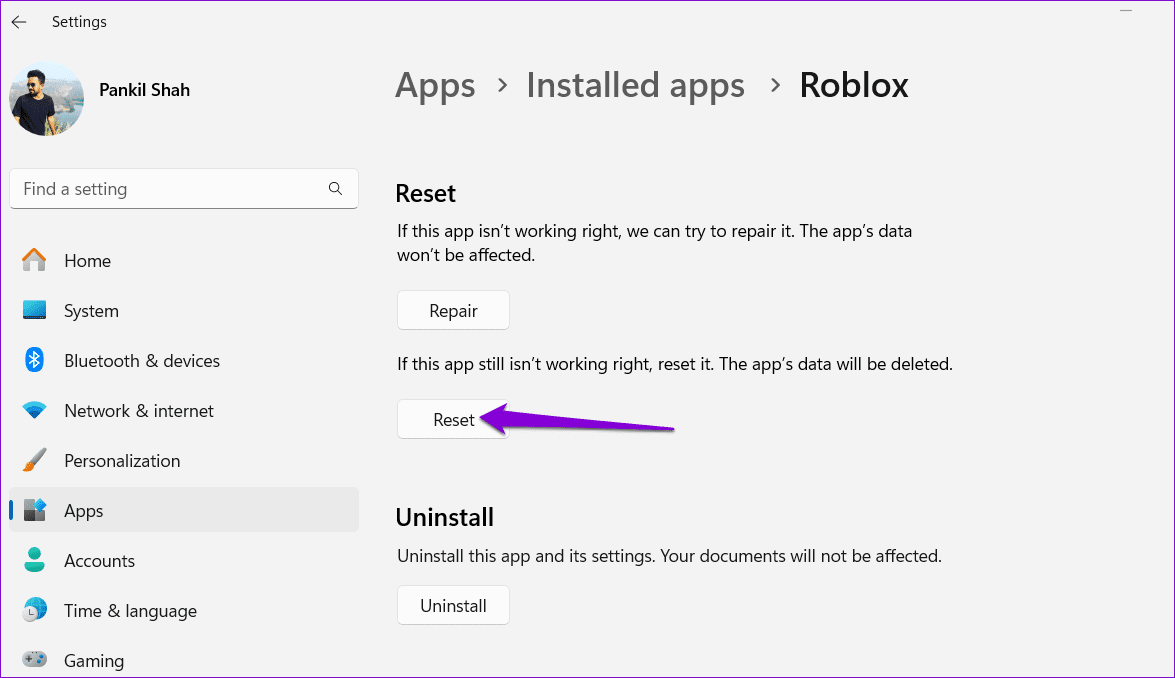

Roblox OS Settings Explained Simply . How To Force Restart Roblox 2025 YouTube . How To Reset Roblox Settings YouTube . 3 Fixes For Roblox Not Updating On Windows Guiding Tech Reset Roblox On Windows . How To Force Restart Roblox YouTube


How To Reset Roblox Settings 2025 Step By Step YouTube . How To Reset Roblox Settings Quick Fix YouTube . Spawning And Respawning Roblox Creator Hub Reset Character Button . How To Easily Restart Roblox Studio YouTube . How To Fix Roblox Stuck Loading Screen 2026 UPDATED 2026 YouTube


How To Restart Roblox Servers YouTube . How To Reset Roblox Settings Full 2024 Guide YouTube . How To Reset Roblox Studio UI Back To Default Settings YouTube . How To Reset Roblox Settings 2025 YouTube . How To Fix Roblox Update Error 2026 Complete Guide YouTube


How To Reset Roblox Files Full Guide YouTube . How To Set Up Roblox Crashing Issue 2026 FULL TUTORIAL YouTube . How To Reset Roblox Without Losing Your Settings Better Explained . Lost Roblox Password How To Find Yours In 2026 . How To Reset Roblox Password In 2026 Easy Step By Step Recovery Guide


How To Fix Roblox Error Code 267 Complete 2026 Guide Tech2Geek 2026 03 03 06 36.webp. How To Reset Roblox Settings On PC YouTube . Roblox Keeps Restarting On PC Fix It Fast On Windows 2026 YouTube . How To Easily Restart Roblox Studio YouTube . How To Reset Roblox Setting Roblox Easy Guide YouTube